You uploaded a video, waited for the views to roll in, and then went to check the comments section. Except there is no comments section. Comments are completely disabled, and you have no idea why. Or maybe a viewer messaged you directly, telling you they tried to leave a comment but could not. Either way, this is one of the most common and most frustrating issues YouTube creators face.
The problem is that YouTube can disable comments for multiple reasons, and the platform does not always make it obvious which reason applies to your video. Some causes are within your control, others are enforced by YouTube policy, and a few are outright bugs. This guide walks through every scenario, explains how to identify what happened, and gives you clear steps to get your comments back.
Quick answer: YouTube comments can be disabled by the "Made for Kids" classification under COPPA, your channel default settings, individual video settings, community guideline strikes, age restrictions on the content, or temporary platform bugs. Check your audience setting and video-level comment controls in YouTube Studio first, as these cover the majority of cases.
Reason 1: Made for Kids Classification (COPPA Compliance)
This is by far the most common reason comments get disabled without the creator realizing it. Under the Children's Online Privacy Protection Act (COPPA), YouTube is required to disable comments on any content classified as "Made for Kids." This is not optional. Even if you manually set your comments to "Allow all comments," YouTube will override that setting if the video is marked as made for children.
The tricky part is that YouTube uses a combination of your own audience setting and its automated detection system. You might set your video audience to "Not made for kids," but if YouTube's machine learning system determines the content looks like it targets children, it can override your selection and reclassify the video. When that happens, comments are automatically turned off, along with other features like personalized ads and end screens.
How to Check Your Made for Kids Status
Open YouTube Studio, navigate to Content, and click on the affected video. Under Details, scroll to the Audience section. You will see whether the video is set to "Yes, it's made for kids" or "No, it's not made for kids." If YouTube's system has overridden your setting, you will see a notice explaining that the platform set the audience designation. You can find detailed instructions in YouTube's official guide on Made for Kids content.
If your content genuinely is not aimed at children but was flagged incorrectly, you can appeal the classification. Go to the video details and look for the option to update the audience setting. Keep in mind that content featuring animation, toys, bright colors, or child-friendly topics is more likely to be flagged, even if your actual target audience is adults. If your appeal is denied, you may need to adjust your content presentation for future uploads to avoid automatic reclassification.

Reason 2: Channel-Level Comment Defaults
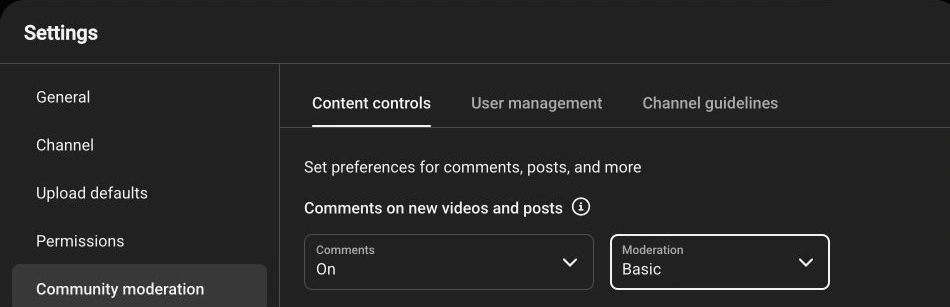
Your YouTube channel has a default comment setting that applies to every new video you upload. If this default is set to "Disable comments" or "Hold all comments for review," every video you publish will inherit that setting unless you manually override it at the video level. Many creators change this setting once during a spam wave and then forget about it, leaving comments disabled for weeks or months without realizing it.
To check your channel default, open YouTube Studio and go to Settings (the gear icon in the left sidebar). Click Community, then look at the Defaults tab. Under Comments on your new videos, you will see the current default. YouTube's official documentation on comment settings covers the available options: allow all comments, hold potentially inappropriate comments for review, hold all comments for review, or disable comments.
If you manage multiple channels or work with a team, this is an especially common issue. A team member with manager access might change the default without informing everyone. The channel default also does not retroactively change existing videos, so you could end up with a mix of videos with comments on and comments off, which makes the problem harder to spot. For teams working across channels, having a documented moderation policy is essential. Our guide on best practices for moderating YouTube comments covers how to set up consistent policies.
Reason 3: Individual Video Comment Settings
Even if your channel default is set to allow comments, individual videos can have their own comment settings that override the channel default. This is by design, because YouTube gives creators granular control over each piece of content. However, it also means that one accidental click during the upload process can disable comments on a specific video.
To check the setting for a specific video, go to YouTube Studio, open Content, click the pencil icon on the video you want to inspect, then click Show more at the bottom of the details panel. Scroll down to Comments and ratings. Here you will see the comment setting for that particular video. Make sure it is set to your preferred option, whether that is "Allow all comments" or "Hold potentially inappropriate comments for review."
A common scenario is bulk uploading. If you use a scheduling tool or upload multiple videos at once, you might accidentally apply the wrong template or miss the comment settings step. Another scenario is editing an older video's metadata. If you open the video details to update the title or description, you might inadvertently change the comment setting while you are in there. Always double-check the comments section before saving any changes to a video's details.

Reason 4: Community Guidelines Strikes and Content Restrictions
YouTube enforces its Community Guidelines across the platform, and videos that violate those guidelines can have their comments restricted or disabled as part of the enforcement action. If your channel has received a Community Guidelines strike, the affected video may lose its comment section entirely. In some cases, YouTube disables comments on a video that has been flagged for review, even before a formal strike is issued.
Beyond full strikes, YouTube also has a system for restricting features on specific videos. A video that receives a high volume of policy-violating comments, such as hate speech, harassment, or spam, may have its comments restricted or disabled by YouTube's moderation systems as a protective measure. This is separate from your own moderation settings. YouTube's team or automated systems make this decision, and you may not receive a clear notification about it.
To check your channel's strike status, go to YouTube Studio and click on Settings, then Channel, then Feature eligibility. If you have active strikes, they will appear here along with their expiration dates. You can also check the status of individual videos by looking at their restriction icons in the Content section of YouTube Studio. YouTube's Community Guidelines strikes overview explains the full policy and appeal process.
If your video has been flagged but you believe the decision is incorrect, you can appeal the strike. YouTube reviews appeals manually, and the process typically takes a few business days. During the appeal period, comment restrictions usually remain in place. Maintaining a healthy comment section proactively can reduce the likelihood of YouTube stepping in. Our guide on how to automatically moderate YouTube comments covers setting up rules that catch violations before they accumulate.
Reason 5: Age-Restricted Content
Videos that are age-restricted, meaning viewers must be signed in and over 18 to watch, have limited comment functionality. While comments are not always fully disabled on age-restricted content, they are significantly limited. Viewers who are not signed in or who are under 18 cannot see or post comments. This drastically reduces visible engagement and can make it look like comments are disabled when they are actually just restricted to a smaller audience.
Age restrictions can be applied by YouTube's review team or by the creator themselves. If YouTube flags a video as requiring an age gate, you will see a notification in YouTube Studio under the video's restrictions column. You can learn more about how YouTube applies age restrictions in their age-restricted content policy.
The practical impact on comments is significant. According to YouTube's own data, age-restricted videos see substantially lower engagement across all metrics, not just comments. If your content is borderline, meaning it discusses mature topics but is not explicitly adult, consider adjusting your presentation to avoid the age gate. Adding context, educational framing, or content warnings can sometimes help YouTube's reviewers classify your content as suitable for general audiences.

Reason 6: YouTube System Bugs and Temporary Outages
Sometimes comments disappear or appear disabled due to no fault of yours at all. YouTube is a massive platform, and temporary bugs or outages can affect comment functionality. These issues typically resolve on their own within a few hours, but they can be alarming when you are in the middle of a launch or a time-sensitive campaign.
Common symptoms of a platform-level issue include comments disappearing across multiple videos simultaneously, comments loading but failing to submit, comment counts showing zero even on videos with known engagement, and the comment section flickering between enabled and disabled states. When you notice these patterns, the first step is to check whether the issue is widespread. Search social media for "YouTube comments not working" or check status reporting sites to see if other creators are experiencing the same problem.
If the issue is confirmed as a platform bug, there is nothing to do except wait. Avoid making changes to your comment settings during an outage, because you might accidentally disable comments permanently while trying to fix a temporary problem. YouTube typically resolves these issues within a few hours, and comments return to their previous state automatically. If you have already seen our guide on YouTube comments not showing, you know that ruling out platform issues early saves significant troubleshooting time.
How to Re-Enable Comments: Step-by-Step for Each Scenario
Now that you know the six reasons comments get disabled, here is how to fix each one. The steps are ordered by how common each cause is, so start at the top and work your way down.
Fix for Made for Kids Misclassification
Open YouTube Studio, go to Content, and click on the video. Under Details, find the Audience section. If the video is set to "Made for Kids" and you believe this is incorrect, change it to "No, it's not made for kids" and save. If YouTube's system set the classification and you cannot change it directly, submit an appeal through the notification banner on the video details page. Be prepared to explain why your content targets a general or adult audience.
Fix for Channel Default Settings
In YouTube Studio, go to Settings (gear icon), then Community, then the Defaults tab. Change the comment setting for new videos to "Allow all comments" or "Hold potentially inappropriate comments for review." Remember that this only affects future uploads. For existing videos with disabled comments, you will need to update each one individually or use the bulk edit feature in the Content section.
Fix for Individual Video Settings
Go to YouTube Studio, open Content, click the pencil icon on the video, click Show more, and scroll to Comments and ratings. Select your preferred option and save. For bulk changes, use the checkbox to select multiple videos in the Content list, then click Edit and choose Comments to apply the same setting across all selected videos at once.
Fix for Community Guidelines Strikes
If a strike is causing the restriction, go to YouTube Studio, then Settings, then Channel, then Feature eligibility. Review the strike details and submit an appeal if you believe it was applied in error. If the strike is valid, wait for it to expire (strikes expire after 90 days for a first offense). During the waiting period, focus on ensuring your remaining content complies with YouTube's Community Guidelines to avoid additional strikes.
Fix for Age-Restricted Content
If YouTube applied the age restriction, you can appeal it from the video's restrictions section in YouTube Studio. If you set the age restriction yourself, you can remove it from the video details. Keep in mind that removing an age restriction does not guarantee comments will immediately return to normal. It may take a few hours for the change to propagate. For Shorts specifically, comment behavior with age restrictions can be particularly inconsistent, as covered in our Shorts comments fix guide.

Preventing Accidental Comment Disabling: Best Practices
Prevention is always easier than troubleshooting. Here are the practices that keep comments reliably enabled across your channel.
First, set your channel default to your preferred comment mode and document it. If you want all comments allowed, set that as the default and note it in your team's workflow documentation. If you prefer to hold potentially inappropriate comments for review, use that setting. The key is to make a deliberate choice and stick with it, rather than changing the default reactively when spam spikes.
Second, audit your audience settings before every upload. Before you hit publish, verify that the audience is set correctly. If you create content that could be misinterpreted as child-directed, consider adding a brief disclaimer in the description or adjusting your thumbnail and title to signal the intended audience. This reduces the chance of YouTube's automated system overriding your setting.
Third, use a pre-publish checklist. Include comment settings, audience classification, and age restriction status on your checklist. This is especially important if you use scheduling tools or upload in batches, where it is easy to miss a setting on one video out of ten. A solid blocked words list also helps you maintain open comments without being overwhelmed by spam, because you can allow comments confidently knowing your filters will catch the worst offenders.
Fourth, restrict who can change channel-level settings. If you work with a team, limit settings access to one or two people. This prevents accidental changes and makes it easier to trace what happened when something goes wrong. YouTube's permission system allows you to give team members moderator access without giving them full control over channel settings.
What to Do When YouTube Disables Comments and You Cannot Re-Enable Them
In some cases, you will follow every troubleshooting step above and still find that comments are disabled with no way to turn them back on. This usually happens when YouTube's policy team has made a manual decision about your content, or when a restriction is tied to a broader channel-level enforcement action that goes beyond a single strike.
When you have exhausted your options within YouTube Studio, your next step is to use YouTube's official creator support channels. If you are part of the YouTube Partner Program, you have access to direct support through Studio. If not, the YouTube Help Community is the best place to get guidance from experienced creators and YouTube product experts.
While waiting for a resolution, you can redirect engagement to other surfaces. Pin a comment on a related video pointing viewers to where they can discuss the restricted content. Use your community tab to create a post about the topic and invite comments there. Share the video on platforms where comments are not restricted and link back to the discussion. These workarounds are not ideal, but they prevent you from losing momentum while the issue is being resolved.
Finally, if a specific type of content consistently triggers comment restrictions, consider adjusting your approach for future uploads. This does not mean censoring yourself. It means being strategic about how you present sensitive topics so that YouTube's systems classify your content correctly. Small changes to titles, thumbnails, and descriptions can make a significant difference in how automated systems evaluate your content.

Managing Comments Effectively Once They Are Enabled
Getting comments enabled is only half the battle. Once they are on, you need a system to manage them at scale. Manually checking every video's comment section is not sustainable, especially if you upload frequently or manage multiple channels. This is where automation and tooling make a real difference.
Start by using CommentShark's Comment Searcher to search across all your comments in one place. You can filter by date, sentiment, keyword, and video, which makes it easy to spot issues before they escalate. If a viewer reports that they cannot comment, you can quickly verify whether their comment is held, hidden, or genuinely missing.
For ongoing management, CommentShark's AI Reply Assistant lets you set up automated replies and moderation rules that run around the clock. You can auto-reply to common questions, flag potential spam, and ensure that every legitimate comment gets a response. This keeps your comment section active and healthy, which also signals to YouTube's algorithm that your content drives meaningful engagement.
Stop losing engagement to disabled or unmanaged comments. Get your comments enabled, then use CommentShark to search, moderate, and reply to every comment automatically.
Try CommentShark Free