Comments on YouTube Shorts can go missing in several different ways: the button disappears, the panel won’t load, the Short says comments are turned off, or a single comment vanishes. Each has a different cause, so start with what you actually see.
Short answer. When Shorts comments seem gone, match the symptom. A missing button or a blank, loading panel usually points to the app, network or Restricted Mode, so compare another Short and open the link in a browser. “Comments are turned off” comes from the creator’s settings, audience or visibility, and only the creator can change it. One missing comment is usually held, removed or hidden.
Start Here: Match the Symptom
- The comment button is missing: Check another Short, reopen the app, and open the same Short in a browser. A missing button alone does not prove the creator disabled comments.
- The panel opens but stays blank or keeps loading: Reload, check Restricted Mode, and compare another device or browser.
- You see “Comments are turned off”: Viewers cannot override this. Creators should check the Short’s comment setting, audience, visibility, and restriction notices.
- You can read comments but cannot add one: Check sign-in, Pause, subscriber/member requirements, and supervised-account restrictions.
- Only your comment is missing: It may be held, removed, or hidden. Its absence alone does not tell you which.
- Studio says 0, but comments are visible: Compare the same Short and the same account before changing settings. A counter mismatch is not proof that visible comments were deleted.
Fixes for Viewers Whose Comments Aren’t Appearing
Start here if you are watching someone else’s Short. You do not need access to the creator’s Studio to check a loading problem.
- 1. Open the comment panel. Look for the speech-bubble Comments control beside the vertical player. Its placement can vary with the device and layout.
- 2. Compare another Short. If the problem affects several Shorts, investigate the app, account, or network. If one Short displays an explicit disabled message, skip to the creator-setting explanation below.
- 3. Reopen and update the YouTube app. Then open the affected link in a browser. These are diagnostic checks, not guaranteed fixes.
- 4. Check Restricted Mode. When it is enabled, comments are not visible. If a school, workplace, or supervisor controls the setting, ask that administrator about it.
- 5. Check posting eligibility. Sign in if you want to write a comment. Read any message about paused comments or subscriber/member requirements. Some supervised accounts can read comments but cannot write them.
YouTube documents Restricted Mode by device. Supervised-account comment access depends on the account’s content setting. A viewer-side restriction is different from the creator turning comments off for everyone.
Common Reasons Comments Don’t Show on Shorts
Shorts use YouTube’s video comment controls. The player looks different, but a missing button, a moderation hold, and an Off setting require different responses.
- Comments Off: New comments are blocked and existing comments are hidden. Viewers cannot turn them back on.
- Comments Paused: Existing comments remain visible, but no new ones arrive until the creator resumes them.
- Made for Kids: YouTube disables comments for this audience designation. The setting must reflect the content.
- Private visibility: Private videos cannot receive comments. Unlisted videos can, subject to their other settings, but anyone with the link can view and reshare them.
- A moderation hold: A submitted comment is not public until approved. This does not mean the comment panel itself is disabled.
See YouTube’s video comment instructions and the difference between On, Pause, Off, and moderation. Age restriction limits viewing access; it should not be used as a blanket explanation that all comments are disabled.
Step-by-Step Fix for Creators
- 1. Open Studio → Content → your Short. Open Show more and find Comments and ratings. If permitted, set Comments to On, choose a moderation level, and Save.
- 2. Check Audience and Visibility. Made for Kids and private videos do not allow comments. Correct an inaccurate audience setting, but do not change it merely to enable comments. If YouTube locked the classification, follow its review process.
- 3. Review Community → Held. Approve legitimate comments that are awaiting review. Depending on your Studio interface, the section may be labelled Comments or Comments & Mentions.
- 4. Check future-upload defaults separately. Open Settings → Community moderation → Content controls. Changing defaults does not update the Short you already uploaded.
- 5. Recheck the public result. Open the same Short and confirm whether the symptom changed. If a restriction notice remains, follow that notice rather than repeatedly toggling settings.
You can also change settings in the mobile YouTube app: open your own Short, tap Comments → Settings → Comments under “For this video.” For a disabled setting, see our guide to turning YouTube comments back on.
Held Comments and “Likely Spam”: Where to Look
The current moderation options are shown below in a real Studio screenshot captured in September 2026. Basic holds potentially inappropriate comments; Strict holds a broader range. Hold all is the option that sends all comments for review. Selecting Basic does not put every comment in the queue.
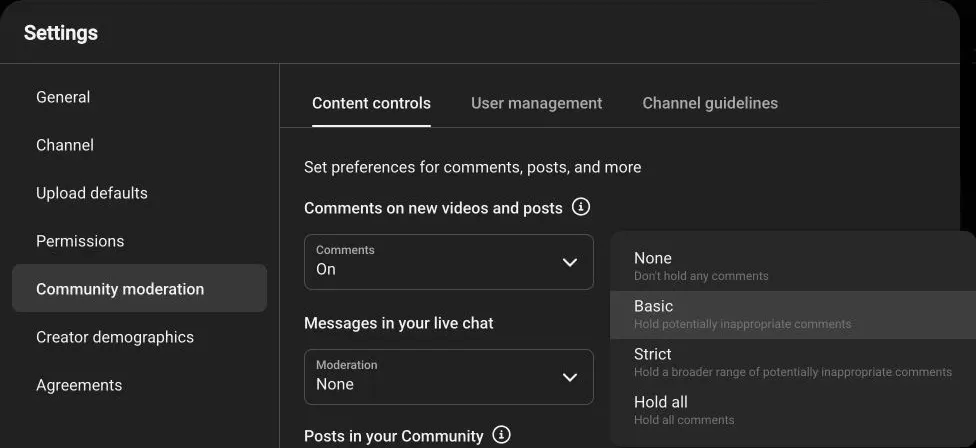
YouTube combined its old Likely spam and Held for review tabs. Open Held; suspected spam may carry a Likely spam label there. YouTube retains held comments for up to 60 days. Follow the current spam-review instructions to review those comments.
Also check blocked words and link filtering under Settings → Community moderation → Content controls, and hidden users under User management. A blocked word may explain a hold. Hidden-user comments are not shown in the Held queue, so do not assume every absent comment is waiting for approval.
If your own comment is visible only to you, that observation does not reveal the exact moderation decision. Avoid repeatedly reposting it: YouTube can detect repeated comments as spam. See our missing-comment guide for the difference between public visibility and moderation.
A Scheduled or Previously-Unlisted Short Shows “0 Comments”
First check what is actually missing: the comments, or just the number. Open the same Short’s live page and compare it with Studio. Confirm you are looking at the same video and remove any Studio filters that narrow the list. If a pinned comment is visible while the count says 0, you have observed a mismatch; that does not establish its cause.
Refresh and compare another browser or device. Check Held if individual comments are absent. We cannot confirm that a visibility change causes a particular processing delay, or promise that the counter will reconcile within 24 hours. If the mismatch persists, report the URL, screenshots, app version, and affected surfaces through YouTube’s Send feedback option.
Do not delete and re-upload a Short just to repair a number. Re-uploading creates a different video and does not preserve its existing engagement. Changing a setting on the existing Short is the appropriate first step when you have identified a settings issue.
Managing Shorts Comments at Scale
Once public comments are available, the CommentShark Comment Searcher can help find a comment on a Short by keyword. It cannot inspect another channel’s moderation queue or recover deleted comments. An empty result does not diagnose why a comment is missing.
Use Studio for held-comment review. For questions and replies on your connected channel, CommentShark automation supports rules with approval before posting. Our Shorts comment-management guide covers an ongoing workflow after troubleshooting. Automation cannot bypass YouTube’s audience or visibility restrictions.
Frequently Asked Questions
Why can’t I see comments on YouTube Shorts?
Start with the symptom. A missing button or blank panel calls for app, browser, and Restricted Mode checks. An explicit disabled message points to the video’s settings or restrictions. One missing comment calls for moderation checks.
Where is the comment button on YouTube Shorts?
Look for the speech-bubble Comments control beside the player. If it is missing, compare another Short and open the same link in a browser. A missing icon alone does not prove that comments are disabled.
How do I enable comments on a YouTube Short?
In Studio, open Content → Short → Show more → Comments and ratings, choose On where permitted, then Save. Check Audience, Visibility, and any restriction notice if the control is unavailable.
Why can I see my comment on a Short but nobody else can?
It may be held or affected by moderation, but this observation alone does not reveal the cause. The creator can check Held. Repeatedly reposting does not resolve a hold and may trigger spam detection.
Can I turn on comments for a Short after uploading?
Yes, where YouTube permits comments on that video. Existing comments hidden by an Off setting reappear when comments are turned On again. Deleted comments are not recovered.
Why do some Shorts have comments and others don’t?
Comment settings, audience designations, visibility, and restrictions can differ by video. Check the specific Short rather than assuming a channel-wide outage.
Is it a bug if my Short has a pinned comment but shows 0 comments?
A visible pinned comment and a zero counter show a mismatch. Compare the same Short across the watch page and Studio, check filters, and report a persistent issue. The mismatch alone does not establish a cause or recovery time.
Will deleting and re-uploading a Short fix missing comments?
Do not use re-uploading as a troubleshooting step for a missing counter or panel. It creates another video without preserving existing engagement. Check the existing Short’s settings and report persistent display problems instead.
Need to find a published comment on a Short? Search the publicly available comments by keyword.
Search YouTube Comments